Getting started
Unpack
A Piccolo optical spectrometer instrument is required to use the firmware and software described here.
A laptop computer is required to run Picoplayer, the software for controlling and interacting with the Piccolo. The laptop is not included with Piccolo.
Note
The Piccolo can be controlled from any computer, laptop, desktop, server. In these instructions the computer controlling the Piccolo will be referred to as the laptop.
The computer must meet the following specifications:
- A laptop or personal computer (PC)
- The Ubuntu 16.04 LTS operating system
- Python 2.7 (included by default with Ubuntu)
Warning
Although Piccolo Player is known to run on other operating systems which support Python, Ubuntu is recommended and is the only system for which support is provided. Other operating systems, such as Mac OS and Windows differ considerably in the way they run Python.
Power
Power the Piccolo with a 12 volt direct current supply or a battery. The current must be sufficient to meet the requirements (approx. 1.2 amps).
Firmware
This step can usually be skipped. The Piccolo firmware is supplied with the instrument on the Raspberry Pi’s SD card. Therefroe, skip this step and go to Turn On.
The Piccolo instrument runs firmware which is held on a Secure Digital (SD) memory card. The firmware controls the Piccolo’s hardware (including the spectrometers, and shutters) and handles the recording of spectra.
Note
A USB flash drive is supplied with the Piccolo to store the spectra it records. The firmware is not on this USB flash drive; it is on the SD memory card. This card also contains a piccolo.config file reqired by the system. If the config file is not present the piccolo will not run.
Picoplayer is software with a graphical user interface which enables you to acquire spectra and adjust instrument settings. It communicates with the instrument using a radio or network connection. In addition it can display plots of spectra as they are being acquired.
Note
The Piccolo software is written entirely in version 2.7 of the Python programming language.
This section describes how to install the firmware. The firmware is stored on the SD card and runs on the Raspberry Pi.
Set up the SD card
The first step in setting up the SD card is to copy Raspian Jessie Lite on it. This process must be performed on a linux laptop (or other computer) preferably with Ubuntu 16.04 LTS and with an SD card slot.
- Download Raspbian Jessie zip file from the downloads page at the Raspberry Pi Foundation (make sure you use 2017-07-05 version)
- Follow the Raspberry Pi Foundation’s instructions to copy it onto the memory (SD) card.
Warning
Copying Raspbian onto the SD card will erase all other data on the card.
Warning
If using the dd tool to copy Raspbian onto the SD card, remember that this tool can overwrite other data on the laptop if used incorrectly.
- Connect the Raspberry Pi to the laptop with an Ethernet cable (or alternatively to a display and keyboard).
When the pi is booted up for the first time the Raspberry Pi ‘Pixel’ desktop environment will be displayed. Click on the ‘terminal’ icon to open a command line terminal.
- Type
sudo raspi-configto open a dialogue. - From this dialogue select
Change User Passwordand follow instruction to change the password to a password you wish to use. Do not leave the username as ‘pi’ and password as ‘raspberry’ as these defaults would allow anyone on the Web or your network to access your system when you go online. - Select
Boot Optionsand select the option to boot to the terminal and to require a pasworh at startup. - Select
Advanced OptionsthenSSHand enable the pi so that you can connect via ssh. - When the picolo was provided to you it was matched to a raspberry Pi and given a unique name i.e. piccolo1. The Piccolo Team keep a record of this information so that if the system is returned to UofE for calibration it can be logged in. Please reuse the same piccolo name if tyou are rebuilding the SD card.
Package list
The apt-get tool allows software to be installed onto the Raspberry Pi directly from its internet connection. To do this it maintains a local package list which needs occasionally to be updated. Type:
sudo apt update
this will update the raspian Jessie operatig system
then:
sudo apt dist-upgrade
to upgrade the system to the latest Jessie packages
Enter the username and password when prompted. (If the The Raspberry Pi username and password have not been changed they will still be the default pi and raspberry.)
Note it may take some time to update and upgrade the operating system.
Install Mercurial
This step is optional.
Mercurial is a source code management tool. It is useful to developers of the Piccolo software to quickly upload and download source code from Bitbucket, the web site which holds the development version of the software.
To install Mercurial type the following command on the Raspberrry Pi:
sudo apt-get install mercurial
If asked Do you want to continue? [Y/n] answer Y for yes.
Installing dependencies
First of all you need to install some dependencies. On the Raspberry Pi, type.:
sudo apt-get update
sudo apt-get install devscripts debhelper cython
Installing the virtual environment
This is needed to creat an environement for the piccolo python project. Do not use apt-get as this will install an older version
The lastest version can be installed by typing:
sudo apt-get install python-virtualenv git equivs
git clone https://github.com/spotify/dh-virtualenv.git
cd dh-virtualenv
sudo mk-build-deps -ri
dpkg-buildpackage -us -uc -b
sudo dpkg -i ../dh-virtualenv_1.0-1.deb
If an old version of dh-virtualenv was installed it will be upgraded.
Install debs ( server-bundle.deb and/or player-bundle.deb )
If you have been provided with a link to the *-bundle.deb files download them and unzip if necessary. For the piccolo create a piccolo2-packages directory on the RPi
pi@rasppberrypi:~$ mkdir piccolo2-packages/
and copy the server-bundle.deb into it . This may require you poweroff the RPi and put the SD card into a loptop to copy the *.deb over. N.B. the debs nmust be built on the computer thta they will be used on i.e. a RPi with Raspian Jexssie lite (2017-04-10 version)
You only need to download and install player-bundle.deb to the RPi you wish to be able to run the Player GUI on the RPi. If it is not installed on the RPi you will still be able to run the Player GUI on a computer.
For a laptop, create a piccolo2-packages directory and copy the player-bundle.deb to there
- These -bundle.deb files are then installed by::
- sudo dpkg -i -bundle.deb
If there are dependancy problems run:
sudo apt-get install -f
- and then try::
- sudo dpkg -i -bundle.deb
again.
To download and Install individual packages if server-bundle.deb or player-bundle.deb are not avialable
With Mercurial installed, the Piccolo repository can be cloned onto the Raspberry Pi.
Download each of the Picolo firmware packages from Bitbucket with:
hg clone https://username@bitbucket.org/teampiccolo/piccolo2-common
hg clone https://username@bitbucket.org/teampiccolo/piccolo2-packaging
hg clone https://username@bitbucket.org/teampiccolo/piccolo2-client
hg clone https://username@bitbucket.org/teampiccolo/piccolo-hardware
hg clone https://username@bitbucket.org/teampiccolo/piccolo2-player
You only need to download and install piccolo2-player you wish to be able to run the Player GUI on the RPi. If it is not installed on the RPi you will still be able to run the Player GUI on a computer.
Build packages
The package bundles are built by running the `dpkg-buildpackage` command in the corresponding subdirectory. For example:
cd /home/pi/somewhere/piccolo2-packaging/client
dpkg-buildpackage -us -uc
This command may take some minutes to complete on the Raspberry Pi for each of the packages.
Upgrading the Piccolo OS
Upgrading the packages in similar. cd to the package directory for each of the Piccolo firmware packages, for example:
cd piccolo2-common
then:
hg pull
hg update
Turning on the Piccolo controller
Switch on the Piccolo by connecting a battery or powering up the supply.
There are several light-emitting diodes (LEDs) that indicate the status of the device.
The red LED labelled PWR on the Raspberry Pi should be illuminated. This indicates that the Raspberry Pi is powered up.
The green LED labelled ACT` should flash intermittently whilst the Raspberry Pi is booting. It indicates that the Raspberry Pi is loading the operating system and the Piccolo firmware from its Secure Digital (SD) card. It should stop flashing once loaded.
Optional: A monitor and keyboard can be connected to the Raspberry Pi to monitor the Piccolo. This is not essential, but can be useful for getting started. The monitor should have a High Definition Multimedia Interface (HDMI) connector and the keybaord a Universal Serial Bus (USB) connector.
Connect
The Piccolo is usually controlled using a laptop. There are two ways to connect the laptop to the Piccolo: wired and wireless. A wired connection uses an Ethernet cable. A wireless connection uses a digital radio module.
Wired
A wired connection can be made to the Piccolo using an Ethernet cable. To do this, use anEthernet cable to connect the Ethernet port of the Raspebrry Pi to the Ethernet port of the laptop. The cable should be a standard (Category 5e) cable and not a cross-over cable.
Ubuntu must be configured to make a Link-local connection. Select Require IPv4 addressing for this conneciton to complete.
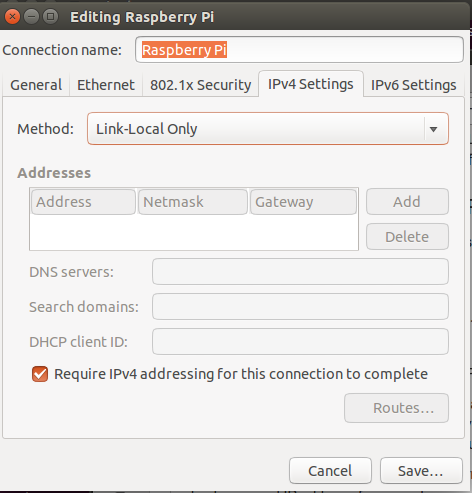
At this point it may be necessary to enable ssh as it is not enabled by default.
To connect to the Raspberry Pi with Secure Shell (ssh), type:
ssh pi@raspberrypi.local
Warning
Plugging the Raspberry Pi into a network may make it available to other computers
on the network or the internet. It is a good idea to change the default password for the pi user from the default (raspberry) to something more secure. The password can be changed with the Raspberry Pi configuration tool described in the next subsection.
Wireless
Set up a wireless connection using the radio modules supplied.
Select the IP address and port
Whilst Piccolo Server is running on (binding to) the localhost address (usually 127.0.0.1) it will not (at least not always) be accessible to other machines on the network. To remedy this, Piccolo Server needs to run on the Internet Protocol (IP) address of the Raspberry Pi.
To find out the IP address of the Raspberry Pi type:
ip addr
The result of this command is a list of network interfaces. The IP address should be in this list. This will be different for different networks. As an example, if the Raspberry Pi is connected to the network wirelessly, the IP address will be given under the wireless adapters list wlan0:
3: wlan0: <BROADCAST,MULTICAST,UP,LOWER_UP> mtu 1500 qdisc mq state UP group default qlen 1000
    link/ether a0:f3:c1:1d:ff:b0 brd ff:ff:ff:ff:ff:ff
    inet 172.16.1.113/24 brd 172.16.1.255 scope global wlan0
       valid_lft forever preferred_lft forever
    inet6 fe80::e4ec:c07:79ff:92d7/64 scope link
       valid_lft forever preferred_lft forever
In the above case, the IP address of the Raspberry Pi is 172.16.1.113.
To verify that the correct IP address has been identify, try using it to connect to the Raspberry Pi with secure shell:
ssh pi@172.16.1.113
If this opens a connection to the Raspberry Pi this confirms that 172.16.1.113 is the IP address of the Raspberry Pi (and not some other device on the network).
Dialout
This step applies only to Piccolo instruments equipped with XBee wireless digital radio modules.
Add the user to the dialout group for using USB radio modules:
sudo usermod -a -G dialout $USER
+============== Download Player ===============
Download the Piccolo Player Debian package archive (deb file).
Install Piccolo Player
Install it:
sudo dpkg --install piccolo-player-x.x.deb
In the above command, replace x.x with the version number of the downloaded Debian package archive file.
If there are dependency problems these can be fixed with:
sudo apt-get update
sudo apt-get install python-numpy python-matplotlib python-qt4
Sometimes persistent dependency problems can be fixed with:
sudo apt-get -f install
Start Piccolo Player
Wired only: Check that the connection to the Piccolo works with:
ping raspberrypi.local
If the Piccolo is not directly connected to the laptop sometimes the Internet Protocol (IP) address can be discovered with:
avahi-browse -ar
Alternatively, nmap may help.
Once the host name or IP address is known, start Piccolo Player.
View log file
To view the log file, type the following command on the Raspberry Pi:
tail -f /var/log/piccolo.log
Download data
Open an Ubuntu File Manager window. Click Connect to server. Then type sftp://pi@raspberrypi.local/mnt.
This will open a window with the data files.
Backup
Copy data regularly. A power failure during acquisition may corrupt the USB flash drive.
Warning
A power failiure or other electrical fault could corrupt data. Back it up regularly!
Wired
Use the download data above, or rsync.
Wirelsss
Copy directly from the USB flash drive, or use the download feature.
Image the SD card
Plug the SD card into the Ubuntu laptop. (Use the adapter.) It should mount (two partitions) automatically. Type:
mount
This will inform you of the device name. It will be something like mmcblk0p0
Type:
sudo dd if=/dev/mmcblk? of=sdcard.img
Change /dev/mmcblk0 to whatever is required by the device.
Warning
Type the above very careully! Don’t overwrite the laptop’s hard drive! Note the device is called mmcblk0 (and not mmcblk0p0).
Useful terminal commands
ip addr gives the IP address of the Raspberry Pi.
ssh-copy-id can be used for paswordless logins.
Once Raspbian is installed on the SD card, plug it into the Raspberry Pi and connect the Piccolo’s power cable to a battery or power supply. The red PWR light-emitting diode (LED) on the Raspberry Pi should be illuminated and the green ACT LED should flash as the Raspberry Pi boots.
Configuring
The Piccolo has two configuration files.
Server configuration file
This holds some information that helps the Piccolo to start up. It is located on the Raspberry Pi’s Secure Digital (SD) memory card. To edit this file use a terminal (keyboard or Secure Shell):
sudo nano /etc/piccolo.cfg
Note
The server configuration file is on the Raspberry Pi’s SD card, not the USB flash drive.
JSON RPC
Piccolo Server uses Javascript Object Notation Remote Procedure Calls (JSON RPC) for communication. Configure the uniform resource locator (URL) at which the Piccolo will listen for incoming commands.
Port 8080 is the default.
Warning
No password required to control the Piccolo.
Daemon
Determines whether to run Piccolo Server as a daemon.
Data directory
All acquired data along with the instrument configuration file are stored in this directory.
Instrument configuration file
This holds information about customizable configurations of the Piccolo. It is in the data directory on the USB Flash drive. The name of the data directory is specified in the Server Configuration File. The filename of the instrument configuraiton file is:
piccolo.config
Channels
The Piccolo has two channels: upwelling and downwelling. This section associates a shutter (1, 2 or 3) and a fibre with each channel. This information is required to ensure that the correct shutter (1, 2 or 3) is openend to record each spectrum. This section also includes information about he optical fibre used for each channel. This information is not used by the Piccolo, but it is saved in the meatadata (header) section of data (Pico) files.
Reverse polarity on a shutter.
If the polarity of a shutter connection has been reversed the shutter will be open when it should be closed; and closed when it should be open. If this happens, try changing Reverse from false to true.
| Channel | Shutter | Reverse? |
|---|---|---|
| downwelling | no (false) | |
| upwelling | no (false) |
Note
The terms downwelling and upwelling refer to the direction of the optical radiation, not the direction in which the input is pointing. The downwelling radiation is measured by the upward-pointing input whilst the upwelling radiation is measured by the downward-pointing input.
Spectrometers
Some spectrometers, including the Ocean Optics NIRQuest and QE Pro series, are equipped with a thermoelectric cooler to control the temperature of the detector.
Warning
The thermoelectric cooler on QE Pro series spectrometers can heat the detector as well as cooling it. To ensure the detector is cooled (and not heated) choose a detector set temperature below the ambient temperature.
The temperature to which the detector will be cooled can be adjusted. A cooler temperature will reduce the electronic noise in the signal but will increase the (electrical) power consumption. The spectrometer’s fan can also be turned on or off. These settings will be applied when the Piccolo’s hardware is initialized. The settings will be applied only to the spectrometer with the given serial number.
Calibrations
The instrument configuraiton file has a place to store calibration data.
[[[calibrations]]] [[QEP01651]] # Spectrometer serial number [[[upwelling]]] # Channel wavelengthCalibrationCoefficientsPiccolo = [ 0.1, 2, 3.1, 0.5, 0.1, 0.5 ] [[[downwelling]]] wavelengthCalibrationCoefficientsPiccolo = [ -0.1, -2, -3.1, -0.5, -0.1 ] }}